# Configure Replicas
In the **Replica Configuration** tab, you can configure the size, networks, and storage volumes for the VM instances that VM Auto Scaling creates. You may also use the CloudInit mechanism to configure VM instances.
You can configure the following on the **Replica Configuration** tab:
{% hint style="warning" %}
**Note:**
* Certain limitations listed on this page apply during the [EA](https://docs.ionos.com/cloud/support/general-information/glossary-of-terms#early-access-ea) deployment and are subject to change as the product evolves.
* During the EA phase, it is possible to delete replicas manually. Manual deletion of replicas does not remove the IP address of the replica from the **Targets** list (**Network > Target Groups >** select a **Target Group** and click **Targets**); ensure that you remove them manually from the **Targets** list before you delete the associated replica.
{% endhint %}
## Configure VM Replicas
To configure VM replica settings, follow these steps:
1\. In the **DCD**, go to **Menu** > **Network Services** > **Auto Scaling**.
2\. Click **Create** to create a group and define replicas.

3\. Go to the **Replica Configuration** tab in the **Create VM Auto Scaling Group** window and configure **Settings**, **Network**, and **Volumes**.
{% tabs %}
{% tab title="Settings" %}
Click **Clone Settings and Volumes** from the drop-down list to clone the **CPU Architecture**, **Cores**, and **RAM** automatically from your VMs in the VDC. You can also use the slider to configure them manually.

{% endtab %}
{% tab title="Network" %}
You can configure the network connection between a VM instance and a virtual network using a [Network Interface Card (NIC)](https://docs.ionos.com/cloud/support/general-information/glossary-of-terms#nic).\
You can create a NIC instantly by clicking **+Add** and associating it with a [Local Area Network (LAN)](https://docs.ionos.com/cloud/support/general-information/glossary-of-terms#local-area-network-lan). VDC automatically creates an IP address for the associated NIC. By associating a NIC with a LAN, you define the networking features for the respective VM Auto Scaling Group. If you have already defined NICs, select one from the drop-down list.

1\. **Name:** Enter a name for the NIC.
2\. **DHCP:** Select the checkbox to provision IP addresses for your VM instances.
{% hint style="warning" %}
**Note:** During the EA phase, we recommend using the DHCP feature from IONOS Cloud to advertise the assigned IPs to the network; otherwise, detection within the [ALB](https://docs.ionos.com/cloud/support/general-information/glossary-of-terms#application-load-balancer-alb) may not work as expected.
{% endhint %}
3\. **LAN:** Enter the LAN ID to be used for accessing the VM instances on the network.
4\. **Firewall active:** Select the checkbox to activate the firewall. By default, an active firewall without defined rules blocks all incoming network traffic except for the rules that explicitly allow specific protocols, IP addresses, and ports.
5\. **Firewall Type:** Select **Ingress**, **Egress**, or **Bidirectional** to choose firewall rules for the type of queries that will be allowed on the NIC. By default, **Ingress** is used if you do not specify a value.
6\. **Firewall Rules:** Click **Manage Rules** to allow managing requests from external networks. When configured, all firewall rules defined for the specified NIC are listed.
7\. **Flow Logs:** Select a flow log from the drop-down list to log all network packets. The list of all flow logs for the specified NIC is displayed. You can instantly create a new flow log, if necessary. For more information, see [Configure Flow Logs](https://docs.ionos.com/sections-test/guides/network-services/application-load-balancer/how-tos/configure-flow-logs).
{% hint style="warning" %}
**Note:** During the EA phase, **Flow Logs** are not supported. If you apply a configuration, the creation of VM Auto Scaling Groups will fail.
{% endhint %}
8\. [Associate an ALB](#associate-an-application-load-balancer-alb). You can also associate an ALB after configuring replicas. You can create target groups and define health checks. For more information, see [Create Target Groups](https://docs.ionos.com/sections-test/guides/network-services/application-load-balancer/how-tos/create-target-groups).

{% endtab %}
{% tab title="Volumes" %}
VM Auto Scaling creates VM instances based on the specified storage volumes during scaling.

1\. **Name:** Enter a name for the storage volume.
2\. **Boot device:** Select a value from the drop-down list to use the corresponding volume as a boot volume. You can select one of these values:
* Choose **Auto** to allow VDC to delegate the provisioning engine to select the boot volume automatically.
* Choose **Primary** to set the configured volume as a boot volume.
* Choose **None** if you do not want to configure a boot volume.
**Note:** You can either set one volume to **Primary** or set all volumes to **Auto**.
{% endtab %}
{% tab title="undefined" %}
3\. **Bus:** Select a driver from the drop-down list. The predefined values are **VIRTIO** and **IDE**.
{% endtab %}
{% tab title="undefined" %}
4\. **Storage Type:** Select either **HDD**, **SSD Premium** or **SSD Standard** from the drop-down list to configure the type of storage. IONOS Cloud provides three different types of disks and you can choose to attach either of these to the VM Auto Scaling Group.
{% endtab %}
{% tab title="undefined" %}
5\. **Size in GB:** Specify the size of the selected storage type.
{% endtab %}
{% tab title="undefined" %}
6\. **Image:** Select either an **Image** or an **Image Alias** from the drop-down list to associate it with a VM Auto Scaling Group. A **Password** is mandatory to configure either of these. You can also associate the following with the storage volume:
{% endtab %}
{% tab title="undefined" %}
* **SSH keys:** Select the checkbox to use the SSH keys to validate the request and create an encrypted connection for communication.
* **Cloud-Init User Data:** Click **No configuration** to specify the user data (Cloud-Init) for this replica volume.
{% endtab %}
{% tab title="undefined" %}
7\. **Backup Unit:** Select a backup unit from the drop-down list, if already configured. Otherwise, you can create one instantly. Backups of VM instances are stored in the associated backup unit regularly.
{% endtab %}
{% tab title="undefined" %} 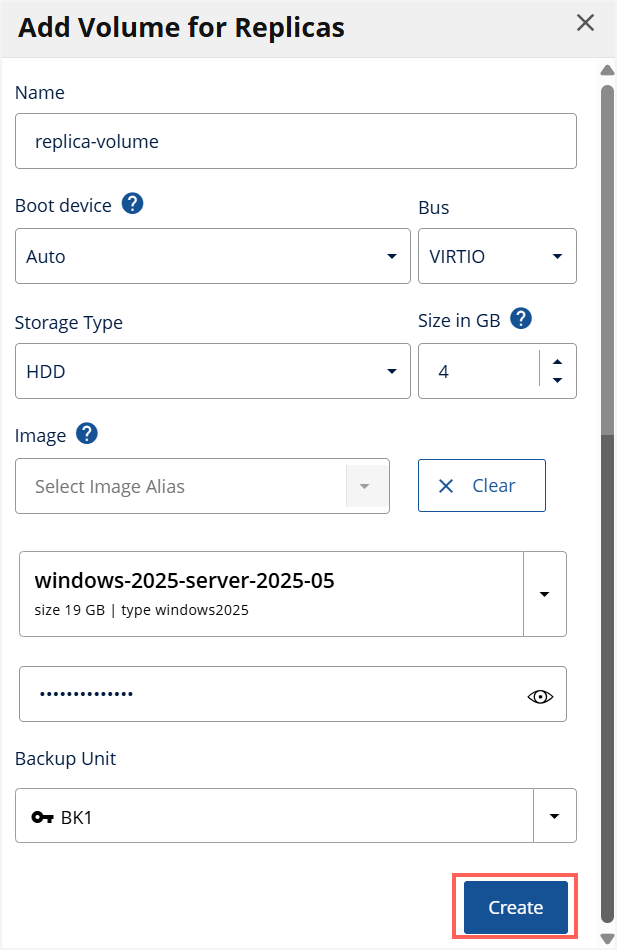 {% endtab %}
{% endtabs %}
{% hint style="warning" %}
**Important:** The VM Auto Scaling feature creates replicas based on the configuration. Changes to the existing configuration will only apply to new replicas but not the instances that are already running. Hence, we recommend that you configure **Settings**, **Network**, and **Volumes** before clicking **Create** to avoid any discrepancies later.
{% endhint %}
4\. Click **Create** to configure your VM Auto Scaling Group.
{% hint style="success" %}
**Result:** Your VM Auto Scaling Group is successfully configured with VM replicas and can be managed via the VM Auto Scaling Manager.
{% endhint %}

## Associate an Application Load Balancer (ALB)
An [Application Load Balancer (ALB)](https://docs.ionos.com/cloud/support/general-information/glossary-of-terms#application-load-balancer-alb) from the VDC can be associated with the replica configuration. As a result, a replica can be linked to multiple target groups if a target group contains several NICs. This way an ALB ensures that the load is equally distributed among the replicas.
When you associate an ALB with a replica configuration, the ALB can use all of the VM replicas created by the VM Auto Scaling feature, which means your application can scale and receive requests from different queries based on the configured ALB.
To associate an ALB with a replica configuration, go to the **Replica Configuration** tab in the **Create VM Auto Scaling Group** window and specify the following:
1\. **Target Group:** Select a value from the drop-down list. You can also click **Create new Target Group** from the drop-down list to instantly create a new target group. When you specify a target group, the scaling process associates replicas with the target groups. The ALB checks these target groups to verify the available IP addresses to process requests.
{% hint style="info" %}
**Note:** You cannot delete a target group if it is associated with the replica of the VM AutoScaling group and in use. We recommend deleting the AutoScaling group first before deleting the target group.
{% endhint %}
2\. **Port:** Select a value from the drop-down list to decide the port on which the queries must be redirected. It is recommended to set the port to **TCP port 80**. This port is used by the ALB to distribute traffic to individual replicas. 3. **Weight:** The traffic is distributed proportionally to the target weight, which is the ratio of the total weight of all targets. A target with a higher weight receives a larger share of traffic. The valid range is from 1 to 256. We recommend using values in the middle range to leave room for later adjustments.
{% hint style="info" %}
**Note:**
* If you have not already configured an ALB, log in to the DCD with your username and password, drag-and-drop the **Application Load Balancer** from the Palette on the left side of the screen into your VDC to start configuring it. For more information about connecting your target group to an ALB, see [Create Target Groups](https://docs.ionos.com/sections-test/guides/network-services/application-load-balancer/how-tos/create-target-groups).
* It is mandatory to define at least one network before you configure an ALB, so you can associate an ALB with the group after [configuring replicas](#configure-vm-replicas).
{% endhint %}

{% endtab %}
{% endtabs %}
{% hint style="warning" %}
**Important:** The VM Auto Scaling feature creates replicas based on the configuration. Changes to the existing configuration will only apply to new replicas but not the instances that are already running. Hence, we recommend that you configure **Settings**, **Network**, and **Volumes** before clicking **Create** to avoid any discrepancies later.
{% endhint %}
4\. Click **Create** to configure your VM Auto Scaling Group.
{% hint style="success" %}
**Result:** Your VM Auto Scaling Group is successfully configured with VM replicas and can be managed via the VM Auto Scaling Manager.
{% endhint %}

## Associate an Application Load Balancer (ALB)
An [Application Load Balancer (ALB)](https://docs.ionos.com/cloud/support/general-information/glossary-of-terms#application-load-balancer-alb) from the VDC can be associated with the replica configuration. As a result, a replica can be linked to multiple target groups if a target group contains several NICs. This way an ALB ensures that the load is equally distributed among the replicas.
When you associate an ALB with a replica configuration, the ALB can use all of the VM replicas created by the VM Auto Scaling feature, which means your application can scale and receive requests from different queries based on the configured ALB.
To associate an ALB with a replica configuration, go to the **Replica Configuration** tab in the **Create VM Auto Scaling Group** window and specify the following:
1\. **Target Group:** Select a value from the drop-down list. You can also click **Create new Target Group** from the drop-down list to instantly create a new target group. When you specify a target group, the scaling process associates replicas with the target groups. The ALB checks these target groups to verify the available IP addresses to process requests.
{% hint style="info" %}
**Note:** You cannot delete a target group if it is associated with the replica of the VM AutoScaling group and in use. We recommend deleting the AutoScaling group first before deleting the target group.
{% endhint %}
2\. **Port:** Select a value from the drop-down list to decide the port on which the queries must be redirected. It is recommended to set the port to **TCP port 80**. This port is used by the ALB to distribute traffic to individual replicas. 3. **Weight:** The traffic is distributed proportionally to the target weight, which is the ratio of the total weight of all targets. A target with a higher weight receives a larger share of traffic. The valid range is from 1 to 256. We recommend using values in the middle range to leave room for later adjustments.
{% hint style="info" %}
**Note:**
* If you have not already configured an ALB, log in to the DCD with your username and password, drag-and-drop the **Application Load Balancer** from the Palette on the left side of the screen into your VDC to start configuring it. For more information about connecting your target group to an ALB, see [Create Target Groups](https://docs.ionos.com/sections-test/guides/network-services/application-load-balancer/how-tos/create-target-groups).
* It is mandatory to define at least one network before you configure an ALB, so you can associate an ALB with the group after [configuring replicas](#configure-vm-replicas).
{% endhint %}
