# Set User Privileges
{% hint style="info" %}
**Prerequisites:** Only contract administrators, owners, and users with valid access rights can view, use, or edit resources in a [VDC](https://docs.ionos.com/cloud/support/general-information/glossary-of-terms#vdc). These access rights are assigned to groups and are inherited by group members.
{% endhint %}
## Set access rights and ownership
By default, a resource creator is the resource's owner and can specify access rights. The **Security** tab of the respective resource displays its ownership details. The following table shows the access rights necessary to access and use a resource.
| **Access rights** | **Description** |
| ----------------- | ----------------------------------------------------------------------------------------------------------------------------------------------------- |
| **Read** | Users can view and use the resource but not modify it. Read access is automatically granted when a user is assigned to a group with this access right |
| **Edit** | Modify and delete the resource. |
| **Share** | Share a resource, including their access rights, with the groups to which they belong. |
## Set restrictions using 2-factor authentication
In addition to enabling access to a resource, you can activate [2-factor authentication](https://docs.ionos.com/sections-test/guides/set-up-ionos-cloud/account-management/account-security#set-up-2-factor-authentication) for your data centers and snapshots. Only users authorized with 2-factor authentication can access the data centers and snapshots, and unauthorized users cannot view or access the resources, even if they belong to an authorized group.
Depending on their role, users can set access rights at the resource level and via the **User Manager**.
## Manage access rights
To manage access rights, you can either set permissions directly at the resource level or use the **User Manager** to control access for users and groups. Both methods allow you to define who can view, edit, or share resources according to your organizational requirements.
{% tabs %}
{% tab title="Manage access rights at the resource level" %}
{% hint style="info" %}
**Prerequisites:** Only contract owners, administrators, or users with relevant access rights can share the required resource. Other user types have read-only access and cannot provision changes.
{% endhint %}
To manage access rights at the resource level, follow these steps:
1. In the **DCD**, go to **Menu** and select the appropriate resource type:
* Images: **Storage & Backup** > **Images & Snapshots** > **Image**

* Snapshots: **Storage & Backup** > **Images & Snapshots** > **Snapshot**

* IP addresses: **Network Services** > **IP Management**

* Kubernetes Cluster: **Containers** > **Managed Kubernetes**

2. Select the required resource for which you would like to manage access rights.
3. Select **Security** > **Visible to Groups**.
{% hint style="info" %}
**Note:** Select the **2-Factor Protected** option to protect a resource (Data Center, Snapshots) more thoroughly by only allowing access to users whose logins are secured with 2-factor authentication.
{% endhint %}
4. From the **Add Group** drop-down list, select the required groups to enable access.
5. *(**Optional**)* Select further permissions (**Edit**, **Share**). You may only share those permissions that you have.

{% hint style="info" %}
**Note:**
* **Read** access is automatically granted when a user is assigned to a group with this access right.
* To restrict access, clear the respective checkbox or click **Remove Group**. Remember that clicking **Remove Group** removes access for all selected group members.
{% endhint %}
{% endtab %}
{% tab title="Set access rights via the User Manager" %}
Contract owners and administrators can set the access rights and also limit who else can access a resource by defining its permissions in the **User Manager**.
To set access rights via the **User Manager**, follow these steps:
1. In the **DCD**, go to **Menu** > **Management** > **Users & Groups**.
2. Select the required resource in the **Resources** tab.
**Note:** Select the **2-Factor Protected** option to protect a resource (Data Center, Snapshots) more thoroughly by only allowing access to users whose logins are secured with 2-factor authentication.
{% endtab %}
{% tab title="undefined" %}
3\. Select the **Visible to Groups** tab.
4\. From the **Add Group** list, add the required groups to enable access.
5\. *(**Optional**)* Select **Edit** to enable write access or **Share** to enable resource sharing.
{% endtab %}
{% tab title="undefined" %} 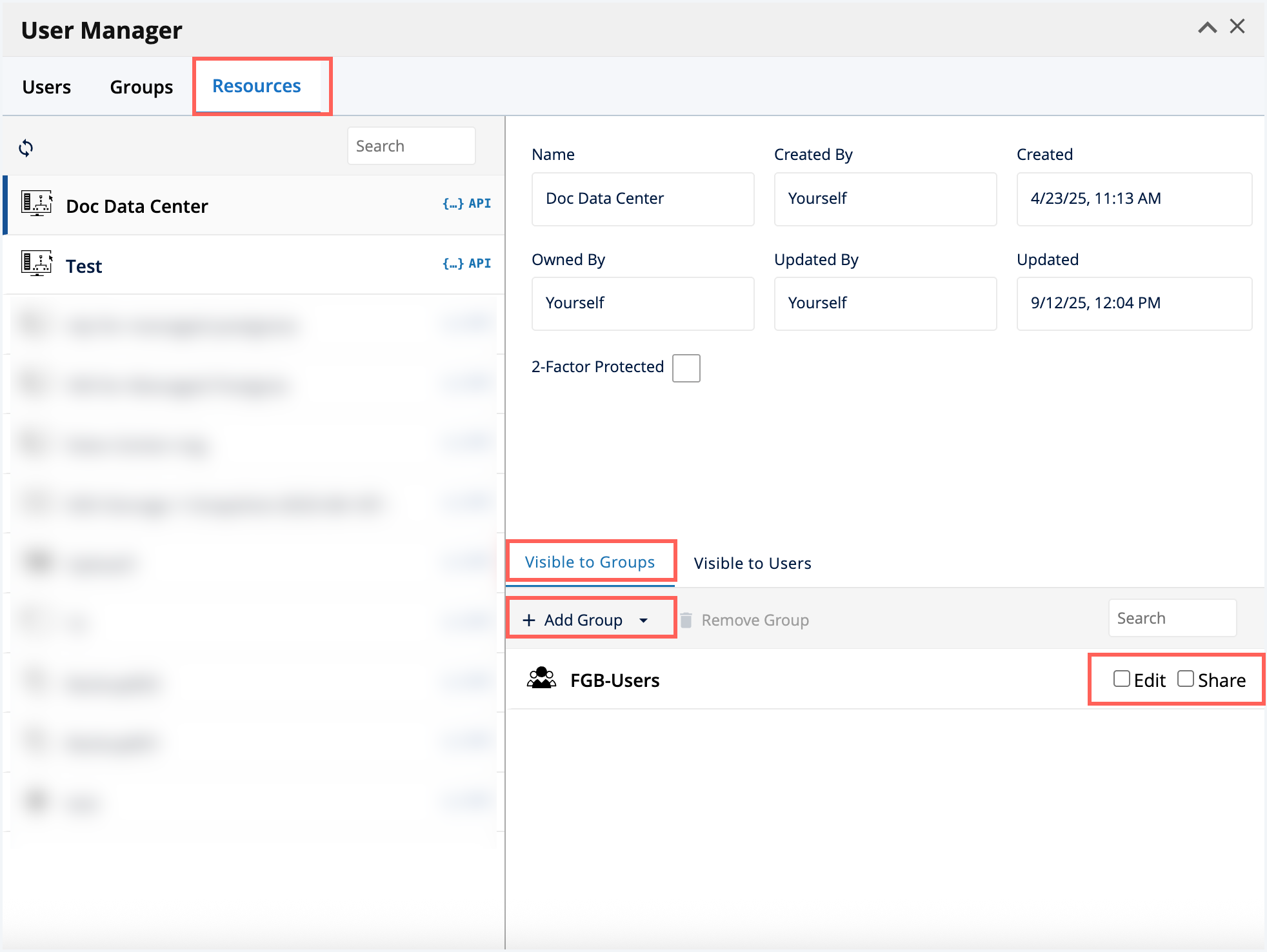 {% endtab %}
{% tab title="undefined" %}
{% hint style="info" %}
**Note:**
* **Read** access is automatically granted as soon as a user is assigned to a group that has this access right.
* To revoke the permission, you can clear the respective checkbox or click **Remove Group**. Remember that, clicking **Remove Group** disables access for all members of the selected group.
{% endhint %}
{% endtab %}
{% endtabs %}
## Assign resources to a group
To assign resources to a group, follow these steps:
1. In the **DCD**, go to the **Menu** > **Management** > **Users & Groups**.
2. Select the required group in the **Groups** tab.
3. Select the **Resources of Group** tab.
4. Select the required resource by clicking on **Grant Access**. This enables read access to the selected resource.
5. *(**Optional**)* Select **Edit** to enable write access or **Share** to enable resource sharing.
{% hint style="info" %}
**Note:** To revoke or restrict access, you can clear the respective checkbox or click **Revoke Access**.
{% endhint %}

For more information about creating and managing the groups, see [Manage User Access](https://docs.ionos.com/sections-test/guides/set-up-ionos-cloud/management/identity-access-management/user-management).
{% endtab %}
{% tab title="undefined" %}
{% hint style="info" %}
**Note:**
* **Read** access is automatically granted as soon as a user is assigned to a group that has this access right.
* To revoke the permission, you can clear the respective checkbox or click **Remove Group**. Remember that, clicking **Remove Group** disables access for all members of the selected group.
{% endhint %}
{% endtab %}
{% endtabs %}
## Assign resources to a group
To assign resources to a group, follow these steps:
1. In the **DCD**, go to the **Menu** > **Management** > **Users & Groups**.
2. Select the required group in the **Groups** tab.
3. Select the **Resources of Group** tab.
4. Select the required resource by clicking on **Grant Access**. This enables read access to the selected resource.
5. *(**Optional**)* Select **Edit** to enable write access or **Share** to enable resource sharing.
{% hint style="info" %}
**Note:** To revoke or restrict access, you can clear the respective checkbox or click **Revoke Access**.
{% endhint %}

For more information about creating and managing the groups, see [Manage User Access](https://docs.ionos.com/sections-test/guides/set-up-ionos-cloud/management/identity-access-management/user-management).