# Set Up a CDN Distribution using Terraform
## Overview
A **Content Delivery Network (CDN)** distributes your web content across geographically dispersed servers, reducing latency and improving load times for users worldwide. This tutorial shows you how to automate the deployment of a CDN distribution using Terraform infrastructure-as-code.
The flow of a web request through the CDN infrastructure begins with DNS resolution, which directs a domain query to the nearest available CDN edge location.
Upon receiving the request, the edge server terminates the TLS connection to establish a secure, encrypted tunnel. It then immediately checks its local cache for the requested content.
* **Cache hit:** If the content is found in the cache, it is served instantly, minimizing latency.
* **Cache miss:** If the content is not cached, the edge server fetches the data from the origin server `cdn-test.example.com`, caches it for future requests, and serves it to the end user.
This process significantly reduces load on the Origin Server and ensures high availability and speed for the end user.

This tutorial demonstrates the following IONOS Cloud components:
| **Component** | **Description** | **Configuration in this tutorial** |
| ----------------------- | ------------------------------------------------------------------------------------------------------------------------- | ----------------------------------------------------------------------- |
| **Cloud DNS** | Manages DNS zones for domains and subdomains on public name servers. | Creates zone for `example.com` and A record for `cdn-test.example.com`. |
| **Certificate Manager** | Simplifies the management of Secure Sockets Layer or Transport Layer Security (SSL or TLS) certificates for your domains. | Issues and renews Let's Encrypt certificate. |
| **CDN** | Delivers content efficiently and securely to users across geographic locations. | Configures distribution with routing rules and security settings. |
## Target audience
This tutorial is designed for:
* **DevOps engineers** automating infrastructure deployment.
* **Platform engineers** building self-service infrastructure.
* **Developers** integrating CDN into application delivery pipelines.
## What you will learn
By the end of this tutorial, you will have a fully automated CDN setup that includes:
* **DNS Zone Management:** Automated DNS configuration for your domain.
* **TLS Certificate Provisioning:** Automatic certificate issuance and renewal via Let's Encrypt.
* **CDN Distribution:** Content delivery with configurable routing, caching, and security policies.
## Before you begin
Ensure that you have the following:
* Basic familiarity with Terraform and DNS concepts.
* [Terraform version 1.0 or later](https://developer.hashicorp.com/terraform/install) and an IONOS Cloud account with API credentials.
* You must have full control over a domain. Example: `example.com` and be prepared to change its nameservers at your registrar.
* Origin server already running and accessible. Example IP address used: `10.0.0.15`. It must respond to `HTTP` or `HTTPS` requests on ports 80 and 443.
## Cost considerations
The following resources outlined in this tutorial are billable and will incur costs when used:
* **CDN bandwidth usage:** A fixed fee per CDN distribution. WAF is charged separately, if activated.
* **DNS zone hosting:** DNS zone is billed separately.
* **Let's Encrypt certificates:** Free and browser-trusted.
To set up cost alerts and estimate costs based on your traffic, see [Cost Alert](https://docs.ionos.com/cloud/set-up-ionos-cloud/management/usage/cost-alert) and [Cost & Usage](https://docs.ionos.com/cloud/set-up-ionos-cloud/management/usage/cost-and-usage).
## Procedure
{% stepper %}
{% step %}
#### Create a DNS Zone
Use Terraform to create a DNS zone:
{% hint style="info" %}
**Note:** This resource defines the main DNS zone `example.com` managed by Terraform.
{% endhint %}
```bash
resource "ionoscloud_dns_zone" "dns_zone" {
name = "example.com"
description = "Managed by Terraform"
enabled = true
}
```
{% hint style="info" %}
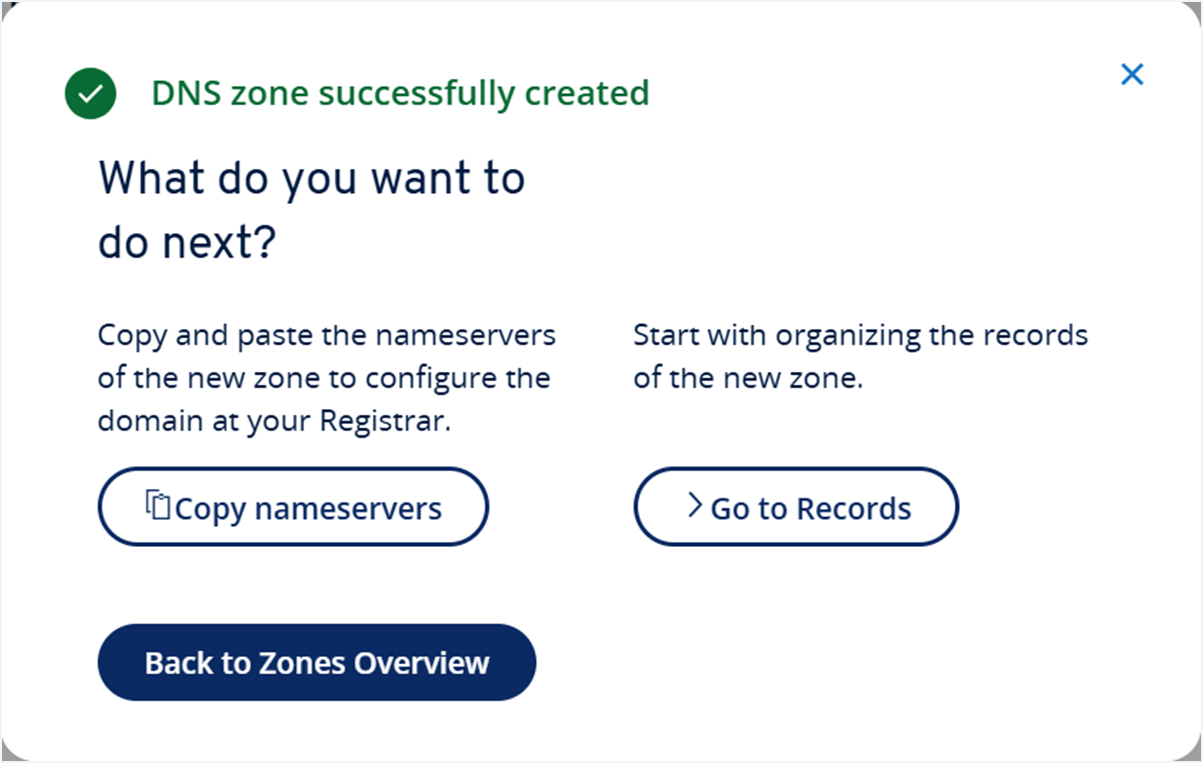
**Note:** The success message includes an option to copy the IONOS Cloud nameservers, which you can use to configure your domain at your registrar. DNS changes may take up to 48 hours to propagate and be effective. Verify that your nameservers in your domain registrar are correctly pointing to:
* `ns-ic.ui-dns.com`
* `ns-ic.ui-dns.de`
* `ns-ic.ui-dns.org`
* `ns-ic.ui-dns.biz`
 {% endhint %}
{% endstep %}
{% step %}
#### Configure an Automatic Certificate Provider (ACME)
Configure an ACME provider. Example: `Let’s Encrypt`. CDN only accepts SSL or TLS certificates from recognized Certificate Authorities (CAs).
```bash
resource "ionoscloud_auto_certificate_provider" "cert_provider" {
name = "Let's Encrypt Provider"
email = "test-certs@ionos.com"
location = "de/fra"
server = "https://acme-dns-server.ionos.com/directory"
}
```
{% hint style="info" %}
**Note:** This resource sets the ACME server, provider name, and notification email for certificate lifecycle events. CDN only accepts SSL/TLS certificates from recognized CAs: GeoTrust, Let's Encrypt (R5, R6, R10, R11, R12, R13, R14), and GlobalSign. Self-signed certificates are not supported due to security requirements.
{% endhint %}
{% endstep %}
{% step %}
#### Request an Auto Certificate
Issue a certificate for your CDN domain:
```bash
resource "ionoscloud_auto_certificate" "certificates" {
provider_id = ionoscloud_auto_certificate_provider.cert_provider.id
common_name = "cdn-test.example.com"
key_algorithm = "rsa4096"
name = "CDN certificate"
}
```
{% hint style="info" %}
**Note:** Terraform requests and manages the TLS certificate, including automatic renewal.
{% endhint %}
{% endstep %}
{% step %}
#### Deploy the CDN distribution
Create the CDN distribution, configure routing rules, and assign the certificate to your domain:
```bash
resource "ionoscloud_cdn_distribution" "cdn_distributions" {
domain = "example.com"
certificate_id = "ionoscloud_auto_certificate.certificates.id"
routing_rules {
scheme = each.value.scheme
prefix = "/"
upstream {
host = "cdn-test.example.com"
caching = false
waf = true
sni_mode = "origin"
rate_limit_class = "R10"
dns_ttl = 60
}
}
}
```
| **Component** | **Description** | **Example** |
| ------------------ | -------------------------------------------------------------------------------------- | --------------------------------------------- |
| `domain` | The parent domain served by the CDN. | `example.com` |
| `certificate_id` | The certificate used to terminate HTTPS connections. | `ionoscloud_auto_certificate.certificates.id` |
| `routing_rules` | Defines path-based routing and CDN behavior. | |
| `Prefix` | The initial part of the URL path used by the CDN to determine routing rules. | `/` |
| `Scheme` | The protocol type for traffic between clients and CDN (`HTTP`, `HTTPS`, or both). | `HTTP/HTTPS` |
| `Host` | The origin server from which the CDN fetches content. | `cdn-test.example.com` |
| `Caching` | Controls whether CDN caches responses from the origin to improve performance. | `false` |
| `WAF` | Enables or disables the Web Application Firewall (WAF) to protect against threats. | `false` |
| `Rate Limit Class` | Sets limits on the number of requests allowed from a single IP address. | `R10` |
| `SNI Mode` | Specifies how the CDN handles Server Name Indication (SNI) for SSL or TLS connections. | `origin` |
| `Geo Restrictions` | Restricts or allows access to the CDN based on the user's geographic location. | `DE`, `FR`, `ES` |
| `upstream` | Configures the origin host, caching, WAF, and rate-limiting policies. | |
{% hint style="success" %}
**Expected result:** The CDN distribution is created with status **Active** or **Provisioning**. The resulting IPv4 or IPv6 addresses must be configured as the new IP addresses for the `A/AAAA` records in the DNS, replacing the origin server's IP addresses.
{% endhint %}
{% endstep %}
{% step %}
#### Add a DNS Record
Create a DNS A record to point `cdn-test.example.com` to the CDN IP. To link your CDN to your domain, you will need to create two specific DNS records: an A record for the IPv4 address and an AAAA record for the IPv6 address. For more information, see [Create DNS Records](https://docs.ionos.com/cloud/network-services/cloud-dns/dcd-how-tos/public-zone/primary-zone/create-dns-records).
{% hint style="info" %}
**Note:** This resource sets the `A` or `AAAA` records for your CDN subdomain with a short TTL for rapid updates.
{% endhint %}
{% tabs %}
{% tab title="A records" %}
```bash
resource "ionoscloud_dns_record" "dns_records" {
zone_id = ionoscloud_dns_zone.dns_zone.id
name = "cdn-test.example.com"
type = "A"
content = "ionoscloud_cdn_distribution.cdn_distributions.public_endpoint_v4"
ttl = 60
}
```
{% endtab %}
{% tab title="AAAA records" %}
```bash
resource "ionoscloud_dns_record" "dns_records" {
zone_id = ionoscloud_dns_zone.dns_zone.id
name = "cdn-test.example.com"
type = "AAAA"
content = "ionoscloud_cdn_distribution.cdn_distributions.public_endpoint_v6"
ttl = 60
}
```
{% endtab %}
{% endtabs %}
The A or AAAA records point `cdn-test.example.com` to the CDN edge server at `ionoscloud_cdn_distribution.cdn_distributions.public_endpoint_v4` or `ionoscloud_cdn_distribution.cdn_distributions.public_endpoint_v6`. The `60`second TTL enables quick DNS updates during testing. Increase this value in production to reduce DNS query load.
{% endstep %}
{% step %}
#### Verify the setup
After deploying your resources, verify that your CDN setup is working as expected:
**1. Initialize and apply Terraform**
Run the following commands in your project directory to initialize your Terraform environment and apply your configuration, provisioning all resources.
```sh
terraform init
terraform apply
```
**2. Check the DNS resolution**
Ensure that `cdn-test.example.com` resolves to the correct IP address:
```sh
dig +short cdn-test.example.com
```
{% hint style="success" %}
**Expected result:** The output must align with the Terraform-assigned CDN IP address used in your DNS `A/AAAA` records.
{% endhint %}
{% endstep %}
{% endstepper %}
### Final result
Now you can access the website `https://cdn-test.example.com` and verify the benefits and performance of the configured **CDN** using any CDN performance testing tools. The site should load securely with a valid certificate.
## Conclusion
In this tutorial, you have set up a secure and automated CDN distribution for your domain using IONOS Cloud and Terraform. The provided Terraform configuration:
* Creates and manages DNS infrastructure
* Automatically issues and renews TLS certificates
* Deploys the CDN distribution with custom routing rules
This approach streamlines content delivery and ensures your site is ready to scale efficiently with CDN.
{% endhint %}
{% endstep %}
{% step %}
#### Configure an Automatic Certificate Provider (ACME)
Configure an ACME provider. Example: `Let’s Encrypt`. CDN only accepts SSL or TLS certificates from recognized Certificate Authorities (CAs).
```bash
resource "ionoscloud_auto_certificate_provider" "cert_provider" {
name = "Let's Encrypt Provider"
email = "test-certs@ionos.com"
location = "de/fra"
server = "https://acme-dns-server.ionos.com/directory"
}
```
{% hint style="info" %}
**Note:** This resource sets the ACME server, provider name, and notification email for certificate lifecycle events. CDN only accepts SSL/TLS certificates from recognized CAs: GeoTrust, Let's Encrypt (R5, R6, R10, R11, R12, R13, R14), and GlobalSign. Self-signed certificates are not supported due to security requirements.
{% endhint %}
{% endstep %}
{% step %}
#### Request an Auto Certificate
Issue a certificate for your CDN domain:
```bash
resource "ionoscloud_auto_certificate" "certificates" {
provider_id = ionoscloud_auto_certificate_provider.cert_provider.id
common_name = "cdn-test.example.com"
key_algorithm = "rsa4096"
name = "CDN certificate"
}
```
{% hint style="info" %}
**Note:** Terraform requests and manages the TLS certificate, including automatic renewal.
{% endhint %}
{% endstep %}
{% step %}
#### Deploy the CDN distribution
Create the CDN distribution, configure routing rules, and assign the certificate to your domain:
```bash
resource "ionoscloud_cdn_distribution" "cdn_distributions" {
domain = "example.com"
certificate_id = "ionoscloud_auto_certificate.certificates.id"
routing_rules {
scheme = each.value.scheme
prefix = "/"
upstream {
host = "cdn-test.example.com"
caching = false
waf = true
sni_mode = "origin"
rate_limit_class = "R10"
dns_ttl = 60
}
}
}
```
| **Component** | **Description** | **Example** |
| ------------------ | -------------------------------------------------------------------------------------- | --------------------------------------------- |
| `domain` | The parent domain served by the CDN. | `example.com` |
| `certificate_id` | The certificate used to terminate HTTPS connections. | `ionoscloud_auto_certificate.certificates.id` |
| `routing_rules` | Defines path-based routing and CDN behavior. | |
| `Prefix` | The initial part of the URL path used by the CDN to determine routing rules. | `/` |
| `Scheme` | The protocol type for traffic between clients and CDN (`HTTP`, `HTTPS`, or both). | `HTTP/HTTPS` |
| `Host` | The origin server from which the CDN fetches content. | `cdn-test.example.com` |
| `Caching` | Controls whether CDN caches responses from the origin to improve performance. | `false` |
| `WAF` | Enables or disables the Web Application Firewall (WAF) to protect against threats. | `false` |
| `Rate Limit Class` | Sets limits on the number of requests allowed from a single IP address. | `R10` |
| `SNI Mode` | Specifies how the CDN handles Server Name Indication (SNI) for SSL or TLS connections. | `origin` |
| `Geo Restrictions` | Restricts or allows access to the CDN based on the user's geographic location. | `DE`, `FR`, `ES` |
| `upstream` | Configures the origin host, caching, WAF, and rate-limiting policies. | |
{% hint style="success" %}
**Expected result:** The CDN distribution is created with status **Active** or **Provisioning**. The resulting IPv4 or IPv6 addresses must be configured as the new IP addresses for the `A/AAAA` records in the DNS, replacing the origin server's IP addresses.
{% endhint %}
{% endstep %}
{% step %}
#### Add a DNS Record
Create a DNS A record to point `cdn-test.example.com` to the CDN IP. To link your CDN to your domain, you will need to create two specific DNS records: an A record for the IPv4 address and an AAAA record for the IPv6 address. For more information, see [Create DNS Records](https://docs.ionos.com/cloud/network-services/cloud-dns/dcd-how-tos/public-zone/primary-zone/create-dns-records).
{% hint style="info" %}
**Note:** This resource sets the `A` or `AAAA` records for your CDN subdomain with a short TTL for rapid updates.
{% endhint %}
{% tabs %}
{% tab title="A records" %}
```bash
resource "ionoscloud_dns_record" "dns_records" {
zone_id = ionoscloud_dns_zone.dns_zone.id
name = "cdn-test.example.com"
type = "A"
content = "ionoscloud_cdn_distribution.cdn_distributions.public_endpoint_v4"
ttl = 60
}
```
{% endtab %}
{% tab title="AAAA records" %}
```bash
resource "ionoscloud_dns_record" "dns_records" {
zone_id = ionoscloud_dns_zone.dns_zone.id
name = "cdn-test.example.com"
type = "AAAA"
content = "ionoscloud_cdn_distribution.cdn_distributions.public_endpoint_v6"
ttl = 60
}
```
{% endtab %}
{% endtabs %}
The A or AAAA records point `cdn-test.example.com` to the CDN edge server at `ionoscloud_cdn_distribution.cdn_distributions.public_endpoint_v4` or `ionoscloud_cdn_distribution.cdn_distributions.public_endpoint_v6`. The `60`second TTL enables quick DNS updates during testing. Increase this value in production to reduce DNS query load.
{% endstep %}
{% step %}
#### Verify the setup
After deploying your resources, verify that your CDN setup is working as expected:
**1. Initialize and apply Terraform**
Run the following commands in your project directory to initialize your Terraform environment and apply your configuration, provisioning all resources.
```sh
terraform init
terraform apply
```
**2. Check the DNS resolution**
Ensure that `cdn-test.example.com` resolves to the correct IP address:
```sh
dig +short cdn-test.example.com
```
{% hint style="success" %}
**Expected result:** The output must align with the Terraform-assigned CDN IP address used in your DNS `A/AAAA` records.
{% endhint %}
{% endstep %}
{% endstepper %}
### Final result
Now you can access the website `https://cdn-test.example.com` and verify the benefits and performance of the configured **CDN** using any CDN performance testing tools. The site should load securely with a valid certificate.
## Conclusion
In this tutorial, you have set up a secure and automated CDN distribution for your domain using IONOS Cloud and Terraform. The provided Terraform configuration:
* Creates and manages DNS infrastructure
* Automatically issues and renews TLS certificates
* Deploys the CDN distribution with custom routing rules
This approach streamlines content delivery and ensures your site is ready to scale efficiently with CDN.