# Set Up a CDN Distribution with IONOS Cloud Object Storage as the origin
## Overview
A **Content Delivery Network (CDN)** is a network of distributed servers that can efficiently deliver web content to users across different geographic locations. This tutorial demonstrates the use of the following:
| **Components** | **Description** |
| ------------------------------ | ------------------------------------------------------------------------------------------------------------------------------------------------------------------------------------------------------------------------------------------------------ |
| **Cloud DNS** | IONOS Cloud DNS lets you publish [Domain Name System (DNS)](https://docs.ionos.com/support/general-information/glossary-of-terms#domain-name-system-dns) zones of your domains and subdomains on public name servers. |
| **Certificate Manager** | IONOS Cloud Certificate Manager is a tool that simplifies the management of Secure Sockets Layer or Transport Layer Security (SSL or TLS) certificates for websites and applications. |
| **IONOS Cloud Object Storage** | IONOS Cloud Object Storage is fully compatible with S3, so you can manage buckets and objects with existing S3 clients when correctly configured. |
| **CDN** | IONOS Cloud Content Delivery Network. |

## Target audience
This tutorial is intended to help both developers and technical decision-makers.
## What you will learn
In this tutorial, you will learn the process of setting up a CDN distribution for a domain using IONOS Cloud and the components mentioned in the [Overview](#overview) section. This tutorial uses the `example.com` domain for demonstration purposes.
## Before you begin
To set up a **CDN distribution** using IONOS Cloud, it is mandatory to have a domain name. Example: `example.com`.
## Procedure
{% stepper %}
{% step %}
**Create a Zone**
To create a zone, follow these steps:
1\. In the **DCD**, go to **Menu** > **Network Services** > **Cloud DNS** > **Public zones** tab.
2\. Select **Create primary DNS Zone** and enter the following information:
| **Component** | **Description** | **Example** |
| -------------------- | ------------------------------------ | ------------------------ |
| **Enabled/Disabled** | Your zone is by default **Enabled**. | |
| **Name** | Your desired domain or subdomain. | `test.example.com` |
| **Description** | A description of the zone. | My CDN distribution zone |
3\. Click **Create zone**.

{% hint style="info" %}
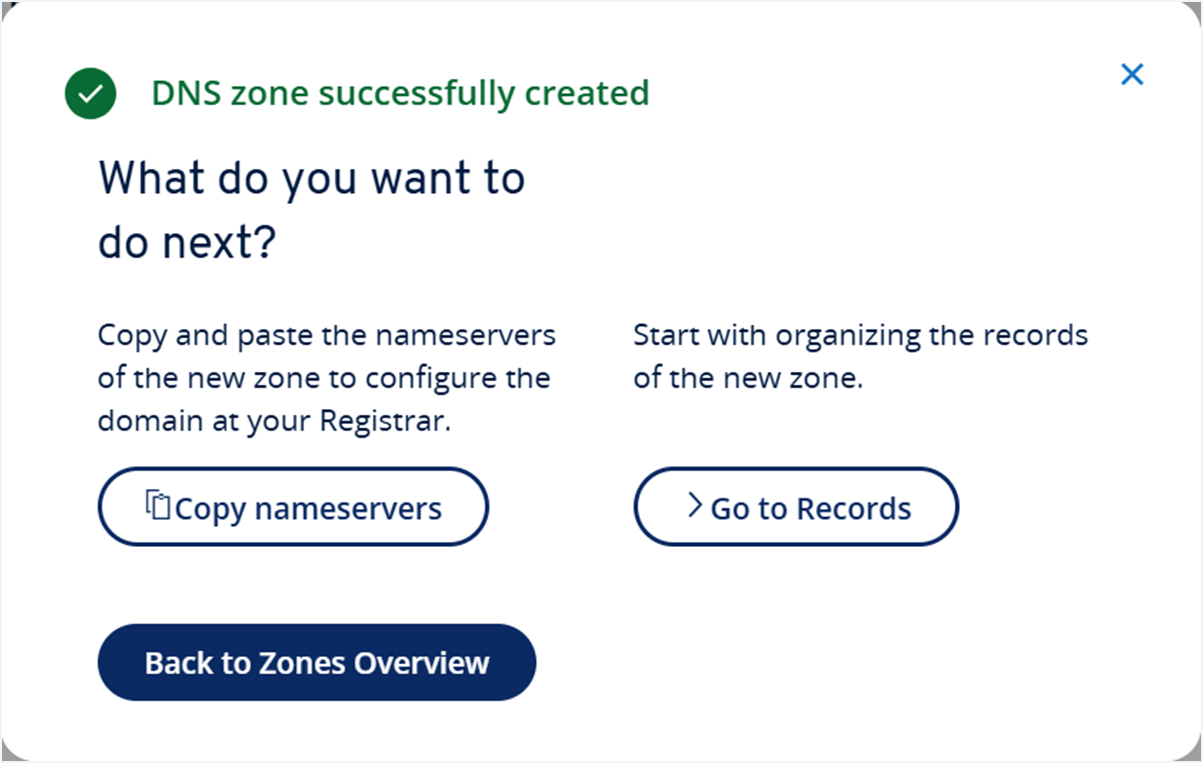
The success message includes an option to copy the IONOS Cloud nameservers, which you can use to configure your domain at your registrar. Please note that DNS changes may take up to 48 hours to propagate and be effective. Verify that your nameservers in your domain registrar are correctly pointing to:
* `ns-ic.ui-dns.com`
* `ns-ic.ui-dns.de`
* `ns-ic.ui-dns.org`
* `ns-ic.ui-dns.biz`
 {% endhint %}
{% endstep %}
{% step %}
**Create an Auto Certificate**
{% hint style="info" %}
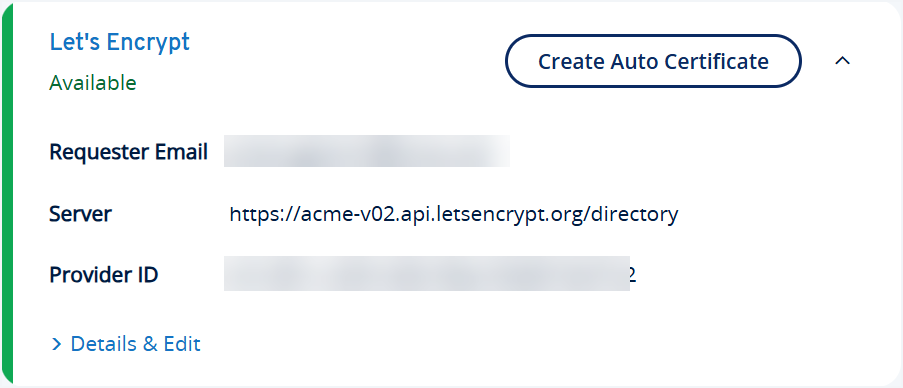
**Note:** Before creating an Auto Certificate, ensure you [create ACME provider](https://docs.ionos.com/cloud/security/certificate-manager/dcd-how-tos/create-acme-provider).
{% endhint %}
{% endstep %}
{% step %}
**Create an Auto Certificate**
{% hint style="info" %}
**Note:** Before creating an Auto Certificate, ensure you [create ACME provider](https://docs.ionos.com/cloud/security/certificate-manager/dcd-how-tos/create-acme-provider).
 {% endhint %}
To create an Auto Certificate, follow these steps:
1\. In the **DCD**, go to **Menu** > **Security** > **Certificate Manager**.
2\. Click **Create Certificate** and select **Auto Certificate**.
3\. Enter the following information:
| **Section** | **Component** | **Description** | **Example** |
| ------------------------ | ------------------------- | ---------------------------------------------------------------------------------------- | ------------------ |
| **Certificate Provider** | Provider | Your ACME provider. | `Let's Encrypt` |
| **Properties** | Certificate Name | Unique identifier for the certificate. | `test.example.com` |
| | Common Name | Common name for the certificate. | `*.example.com` |
| | Key Algorithm | RSA algorithm type. RSA is used for secure public-key encryption and digital signatures. | `RSA3072` |
| | Subject Alternative Names | *(Optional)* Add up to 10 names for the certificate. | |

4\. Click **Create** to create the Auto Certificate.
{% endstep %}
{% step %}
**Set up a User-owned bucket**
To set up a user-owned bucket, follow these steps:
{% hint style="info" %}
**Prerequisite:** You must have at least one active access key; otherwise, [Generate a Key](https://docs.ionos.com/cloud/storage-and-backup/ionos-object-storage/get-started/generate-key) or [activate](https://docs.ionos.com/cloud/storage-and-backup/ionos-object-storage/how-tos/manage-keys#activate-or-deactivate-a-key) an existing one.
{% endhint %}
1\. In the **DCD**, go to **Menu** > **Storage & Backup** > **IONOS Object Storage**.
2\. In the **Buckets** tab, click **Create a bucket**.
3\. Choose the **Bucket region** which determines the geographical location where the data inside the buckets will be stored.

4\. Enter a unique **Bucket name** that adheres to the [naming conventions](https://docs.ionos.com/cloud/storage-and-backup/ionos-object-storage/concepts/buckets#naming-conventions) for a bucket.
{% hint style="info" %}
**Note:** The **Bucket name** must match the fully qualified domain name. Example: `test.example.com`.
{% endhint %}

5\. Click **Create bucket**.
{% hint style="info" %}
**Note:** A bucket will not be created if a bucket with the same name already exists in the IONOS Cloud Object Storage.
{% endhint %}
6\. Go to **Bucket Settings** > **Public access** > **Static Website Hosting**, specify your index and error documents and click **Enable**.

7\. Upload your website files to the bucket. Example: `index.html` or `.png`.

{% hint style="info" %}
**Info:** You can create a website using the IONOS Cloud AI Model Hub [Text Generation](https://docs.ionos.com/cloud/ai/ai-model-hub/how-tos/text-generation) feature.
{% endhint %}
{% endstep %}
{% step %}
**Create a CDN Distribution**
{% hint style="info" %}
**Prerequisite:** Ensure you have the corresponding permissions to create and manage CDN distributions. Only contract administrators, owners, and users with **Access and manage CDN** privilege can create a CDN distribution. For more information, see [Set User Privileges](https://docs.ionos.com/cloud/network-services/cdn/dcd-how-tos/set-user-privileges-cdn-dcd).
{% endhint %}
1\. In the **DCD**, go to **Menu** > **Network Services** > **CDN**.
2\. Click **Create CDN distribution** from the **Distribution overview** page.
3\. Define distribution properties :
| **Component** | **Description** | **Example** |
| ------------------- | ------------------------------------------------------------------------ | ------------------------- |
| **Domain** | Enter your domain. | `test.example.com` |
| **SSL Certificate** | Enter the name of certificate you created using **Certificate Manager**. | `example-ssl-certificate` |

4\. Define routing rules:
| **Component** | **Description** | **Example** |
| -------------------- | ------------------------------------------------------------------------------------------------------------------------------------------------------------------------------------------------ | ------------------------------------ |
| **Prefix** | Enter a prefix that helps the CDN determine the routing policies to apply for any URL path starting with the specified prefix. | `/` |
| **Scheme** | Choose the transfer protocol type (`HTTP/HTTPS`, `HTTPS`, or `HTTP`). The CDN directs `HTTP` requests to `HTTP` and `HTTPS` requests to `HTTPS`. | `HTTP/HTTPS` |
| **Host** | Enter the website host of the IONOS Cloud Object Storage. | `s3-website-eu-south-2.example.com` |
| **Caching** | Turn on or off caching for responses from the upstream host. When enabled, content is cached and reused for subsequent requests. | `On` |
| **WAF** | Turn on or off the Web Application Firewall (WAF) to protect the upstream host from threats and vulnerabilities. | `On` |
| **Rate Limit Class** | Choose a rate limit class from the following to control the rate of incoming requests from specific IP addresses: `R1`, `R5`, `R10`, `R25`, `R50`, `R100`, `R250`, `R500`. | `R10` |
| **SNI Mode** | Ensure you use the `origin` mode, instead of `distribution` mode, while configuring IONOS Cloud Object Storage. | `origin` |
| **Geo Restrictions** | Click **Open country list** to turn on or off countries to be blocked or allowed, then click **Save**. You can also enter a letter to navigate to the country code and choose to block or allow. | Allowed countries: `DE` , `FR` ,`ES` |

5\. Click **Save** to apply the CDN distribution configurations.
{% endstep %}
{% step %}
**Point zone records to CDN**
1\. In the **DCD**, go to **Menu** > **Network Services** > **CDN**.
2\. In the **Distribution overview**, select the created CDN distribution.
3\. In the **Details & Edit CDN distribution**, copy the following IP addresses needed to configure the domain's DNS settings so that the CDN functionality can be active:
* **IPv4 address**
* **IPv6 address**
4\. Create two new records in your DNS zone pointing respectively to the IPv4 and IPv6 addresses.
{% hint style="warning" %}
**Enable Dual-Stack Connectivity:** To reach all global visitors, you must configure both A and AAAA records. While an A record handles IPv4 traffic, an AAAA record is essential for residential and mobile users on IPv6 networks. Omitting the AAAA record may degrade performance or cause connectivity issues for a significant portion of modern internet traffic.
When configuring Cloud DNS for this tutorial, ensure you point:
* The domain or subdomain A record to the IPv4 address.
* The domain or subdomain AAAA record to the IPv6 address.
{% endhint %}
{% tabs %}
{% tab title="Record Type A" %}
To create a record, follow these steps:
1\. In the **DCD**, go to **Menu** > **Network Services** > **Cloud DNS** > **Public zones** tab.
2\. Select the appropriate zone in the **DNS ZONES** column to create records. Alternatively, click **Details & Records** in the **ACTIONS** column.
3\. Click **Create Record** in the **Details & Records** window.
4\. Enter the following details in the **Create Record** window:
| **Component** | **Description** | **Example** |
| -------------------- | ------------------------------------------------------------------------------------------------------------------ | ----------- |
| **Enabled/Disabled** | Set the DNS record to either **Enabled** (default) or **Disabled**. | `Enabled` |
| **Name** | Enter a name for your DNS record. Leave empty for an Apex record. Use `*` for a wildcard record. | `test` |
| **TTL** | Set the Time-To-Live in seconds. The default is 3600 seconds. | `60` |
| **Type** | Choose from available DNS record types. | `A` |
| **Content** | Enter the content for the DNS record, typically an **IPv4 address** or relevant data depending on the record type. | `192.0.2.1` |

5\. Click **Save** to create the DNS record.
{% hint style="success" %}
**Expected result:** Your DNS record is now created.
{% endhint %}
{% endtab %}
{% tab title="Record Type AAAA" %}
To create a record, follow these steps:
1\. In the **DCD**, go to **Menu** > **Network Services** > **Cloud DNS** > **Public zones** tab.
2\. Select the appropriate zone in the **DNS ZONES** column to create records. Alternatively, click **Details & Records** in the **ACTIONS** column.
3\. Click **Create Record** in the **Details & Records** window.
4\. Enter the following details in the **Create Record** window:
| **Component** | **Description** | **Example** |
| -------------------- | ------------------------------------------------------------------------------------------------------------------ | ------------------------------ |
| **Enabled/Disabled** | Set the DNS record to either **Enabled** (default) or **Disabled**. `Enabled` | |
| **Name** | Enter a name for your DNS record. Leave empty for an Apex record. Use `*` for a wildcard record. | `test` |
| **TTL** | Set the Time-To-Live in seconds. The default is 3600 seconds. | `3600` |
| **Type** | Choose from available DNS record types. | `AAAA` |
| **Content** | Enter the content for the DNS record, typically an **IPv6 address** or relevant data depending on the record type. | `2001:db8:85a3::8a2e:370:7334` |

5\. Click **Save** to create the DNS record.
{% hint style="success" %}
**Expected result:** Your DNS record is now created.
{% endhint %}
{% endtab %}
{% endtabs %}
{% hint style="info" %}
**Validate the Zone Records**
Verify that the A and AAAA records for your zone are correctly set up:
```bash
dig example.com A
```
The output should display the correct IP addresses for your zone.
{% endhint %}
{% endstep %}
{% endstepper %}
### Final result
Now you can access the website `https://test.example.com`. You can verify the benefits and performance of the configured **CDN** using any CDN performance testing tools.
## Conclusion
In this tutorial, you have successfully set up a CDN distribution for your domain using IONOS Cloud. Your website should now be accessible via the CDN, and you can enjoy improved performance and availability.
{% endhint %}
To create an Auto Certificate, follow these steps:
1\. In the **DCD**, go to **Menu** > **Security** > **Certificate Manager**.
2\. Click **Create Certificate** and select **Auto Certificate**.
3\. Enter the following information:
| **Section** | **Component** | **Description** | **Example** |
| ------------------------ | ------------------------- | ---------------------------------------------------------------------------------------- | ------------------ |
| **Certificate Provider** | Provider | Your ACME provider. | `Let's Encrypt` |
| **Properties** | Certificate Name | Unique identifier for the certificate. | `test.example.com` |
| | Common Name | Common name for the certificate. | `*.example.com` |
| | Key Algorithm | RSA algorithm type. RSA is used for secure public-key encryption and digital signatures. | `RSA3072` |
| | Subject Alternative Names | *(Optional)* Add up to 10 names for the certificate. | |

4\. Click **Create** to create the Auto Certificate.
{% endstep %}
{% step %}
**Set up a User-owned bucket**
To set up a user-owned bucket, follow these steps:
{% hint style="info" %}
**Prerequisite:** You must have at least one active access key; otherwise, [Generate a Key](https://docs.ionos.com/cloud/storage-and-backup/ionos-object-storage/get-started/generate-key) or [activate](https://docs.ionos.com/cloud/storage-and-backup/ionos-object-storage/how-tos/manage-keys#activate-or-deactivate-a-key) an existing one.
{% endhint %}
1\. In the **DCD**, go to **Menu** > **Storage & Backup** > **IONOS Object Storage**.
2\. In the **Buckets** tab, click **Create a bucket**.
3\. Choose the **Bucket region** which determines the geographical location where the data inside the buckets will be stored.

4\. Enter a unique **Bucket name** that adheres to the [naming conventions](https://docs.ionos.com/cloud/storage-and-backup/ionos-object-storage/concepts/buckets#naming-conventions) for a bucket.
{% hint style="info" %}
**Note:** The **Bucket name** must match the fully qualified domain name. Example: `test.example.com`.
{% endhint %}

5\. Click **Create bucket**.
{% hint style="info" %}
**Note:** A bucket will not be created if a bucket with the same name already exists in the IONOS Cloud Object Storage.
{% endhint %}
6\. Go to **Bucket Settings** > **Public access** > **Static Website Hosting**, specify your index and error documents and click **Enable**.

7\. Upload your website files to the bucket. Example: `index.html` or `.png`.

{% hint style="info" %}
**Info:** You can create a website using the IONOS Cloud AI Model Hub [Text Generation](https://docs.ionos.com/cloud/ai/ai-model-hub/how-tos/text-generation) feature.
{% endhint %}
{% endstep %}
{% step %}
**Create a CDN Distribution**
{% hint style="info" %}
**Prerequisite:** Ensure you have the corresponding permissions to create and manage CDN distributions. Only contract administrators, owners, and users with **Access and manage CDN** privilege can create a CDN distribution. For more information, see [Set User Privileges](https://docs.ionos.com/cloud/network-services/cdn/dcd-how-tos/set-user-privileges-cdn-dcd).
{% endhint %}
1\. In the **DCD**, go to **Menu** > **Network Services** > **CDN**.
2\. Click **Create CDN distribution** from the **Distribution overview** page.
3\. Define distribution properties :
| **Component** | **Description** | **Example** |
| ------------------- | ------------------------------------------------------------------------ | ------------------------- |
| **Domain** | Enter your domain. | `test.example.com` |
| **SSL Certificate** | Enter the name of certificate you created using **Certificate Manager**. | `example-ssl-certificate` |

4\. Define routing rules:
| **Component** | **Description** | **Example** |
| -------------------- | ------------------------------------------------------------------------------------------------------------------------------------------------------------------------------------------------ | ------------------------------------ |
| **Prefix** | Enter a prefix that helps the CDN determine the routing policies to apply for any URL path starting with the specified prefix. | `/` |
| **Scheme** | Choose the transfer protocol type (`HTTP/HTTPS`, `HTTPS`, or `HTTP`). The CDN directs `HTTP` requests to `HTTP` and `HTTPS` requests to `HTTPS`. | `HTTP/HTTPS` |
| **Host** | Enter the website host of the IONOS Cloud Object Storage. | `s3-website-eu-south-2.example.com` |
| **Caching** | Turn on or off caching for responses from the upstream host. When enabled, content is cached and reused for subsequent requests. | `On` |
| **WAF** | Turn on or off the Web Application Firewall (WAF) to protect the upstream host from threats and vulnerabilities. | `On` |
| **Rate Limit Class** | Choose a rate limit class from the following to control the rate of incoming requests from specific IP addresses: `R1`, `R5`, `R10`, `R25`, `R50`, `R100`, `R250`, `R500`. | `R10` |
| **SNI Mode** | Ensure you use the `origin` mode, instead of `distribution` mode, while configuring IONOS Cloud Object Storage. | `origin` |
| **Geo Restrictions** | Click **Open country list** to turn on or off countries to be blocked or allowed, then click **Save**. You can also enter a letter to navigate to the country code and choose to block or allow. | Allowed countries: `DE` , `FR` ,`ES` |

5\. Click **Save** to apply the CDN distribution configurations.
{% endstep %}
{% step %}
**Point zone records to CDN**
1\. In the **DCD**, go to **Menu** > **Network Services** > **CDN**.
2\. In the **Distribution overview**, select the created CDN distribution.
3\. In the **Details & Edit CDN distribution**, copy the following IP addresses needed to configure the domain's DNS settings so that the CDN functionality can be active:
* **IPv4 address**
* **IPv6 address**
4\. Create two new records in your DNS zone pointing respectively to the IPv4 and IPv6 addresses.
{% hint style="warning" %}
**Enable Dual-Stack Connectivity:** To reach all global visitors, you must configure both A and AAAA records. While an A record handles IPv4 traffic, an AAAA record is essential for residential and mobile users on IPv6 networks. Omitting the AAAA record may degrade performance or cause connectivity issues for a significant portion of modern internet traffic.
When configuring Cloud DNS for this tutorial, ensure you point:
* The domain or subdomain A record to the IPv4 address.
* The domain or subdomain AAAA record to the IPv6 address.
{% endhint %}
{% tabs %}
{% tab title="Record Type A" %}
To create a record, follow these steps:
1\. In the **DCD**, go to **Menu** > **Network Services** > **Cloud DNS** > **Public zones** tab.
2\. Select the appropriate zone in the **DNS ZONES** column to create records. Alternatively, click **Details & Records** in the **ACTIONS** column.
3\. Click **Create Record** in the **Details & Records** window.
4\. Enter the following details in the **Create Record** window:
| **Component** | **Description** | **Example** |
| -------------------- | ------------------------------------------------------------------------------------------------------------------ | ----------- |
| **Enabled/Disabled** | Set the DNS record to either **Enabled** (default) or **Disabled**. | `Enabled` |
| **Name** | Enter a name for your DNS record. Leave empty for an Apex record. Use `*` for a wildcard record. | `test` |
| **TTL** | Set the Time-To-Live in seconds. The default is 3600 seconds. | `60` |
| **Type** | Choose from available DNS record types. | `A` |
| **Content** | Enter the content for the DNS record, typically an **IPv4 address** or relevant data depending on the record type. | `192.0.2.1` |

5\. Click **Save** to create the DNS record.
{% hint style="success" %}
**Expected result:** Your DNS record is now created.
{% endhint %}
{% endtab %}
{% tab title="Record Type AAAA" %}
To create a record, follow these steps:
1\. In the **DCD**, go to **Menu** > **Network Services** > **Cloud DNS** > **Public zones** tab.
2\. Select the appropriate zone in the **DNS ZONES** column to create records. Alternatively, click **Details & Records** in the **ACTIONS** column.
3\. Click **Create Record** in the **Details & Records** window.
4\. Enter the following details in the **Create Record** window:
| **Component** | **Description** | **Example** |
| -------------------- | ------------------------------------------------------------------------------------------------------------------ | ------------------------------ |
| **Enabled/Disabled** | Set the DNS record to either **Enabled** (default) or **Disabled**. `Enabled` | |
| **Name** | Enter a name for your DNS record. Leave empty for an Apex record. Use `*` for a wildcard record. | `test` |
| **TTL** | Set the Time-To-Live in seconds. The default is 3600 seconds. | `3600` |
| **Type** | Choose from available DNS record types. | `AAAA` |
| **Content** | Enter the content for the DNS record, typically an **IPv6 address** or relevant data depending on the record type. | `2001:db8:85a3::8a2e:370:7334` |

5\. Click **Save** to create the DNS record.
{% hint style="success" %}
**Expected result:** Your DNS record is now created.
{% endhint %}
{% endtab %}
{% endtabs %}
{% hint style="info" %}
**Validate the Zone Records**
Verify that the A and AAAA records for your zone are correctly set up:
```bash
dig example.com A
```
The output should display the correct IP addresses for your zone.
{% endhint %}
{% endstep %}
{% endstepper %}
### Final result
Now you can access the website `https://test.example.com`. You can verify the benefits and performance of the configured **CDN** using any CDN performance testing tools.
## Conclusion
In this tutorial, you have successfully set up a CDN distribution for your domain using IONOS Cloud. Your website should now be accessible via the CDN, and you can enjoy improved performance and availability.